
Before You Hand Down an Old Device, Run Through This Checklist

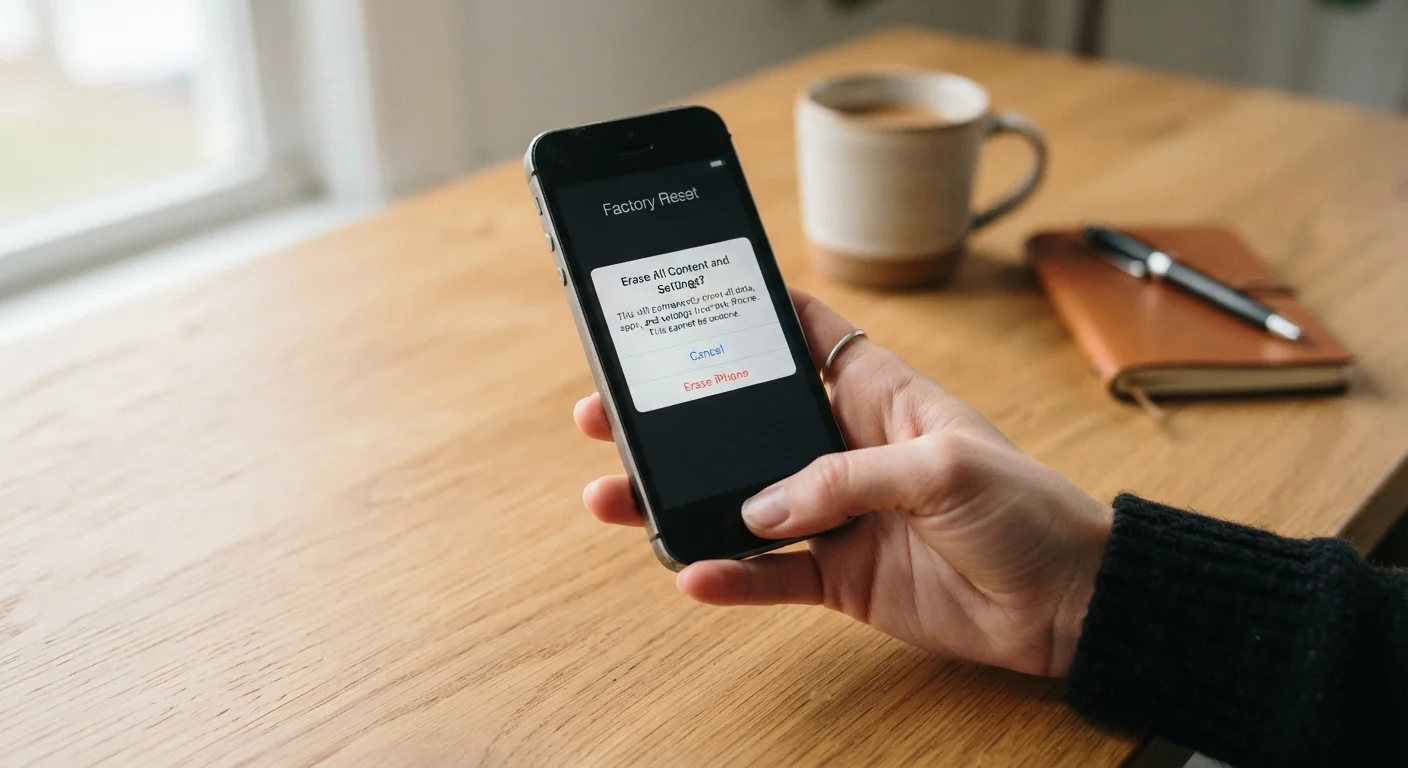
Photo: InDepthReads.com | Streamlining Learning For All editorial
Key Takeaways
- Signing out of every account before a factory reset is critical - a reset alone does not always remove account locks.
- Backing up your data first ensures you don't lose photos, contacts, or app data you still need.
- Removing your SIM card and any memory cards protects information that a reset won't touch.
- Disabling activation locks (like Apple's Find My or Google's Factory Reset Protection) is essential for the next user to set up the device.
- Confirming the wipe was successful by attempting setup as a new user is a smart final verification step.
Why This Step Is More Important Than Most People Realize
Handing down a phone or tablet to a child, parent, or friend feels simple - but skipping the right preparation steps can expose your personal data, lock the new user out of the device entirely, or leave behind accounts that are frustratingly difficult to untangle later.
Modern smartphones are deeply tied to identity. They hold payment credentials, saved passwords, health data, email archives, and authentication apps. A standard factory reset removes files, but it doesn't automatically sign you out of services, disable hardware-level locks, or clear a SIM card. That's why a deliberate, step-by-step approach matters.
This checklist applies to smartphones and tablets running iOS/iPadOS or Android. Some steps may vary slightly by manufacturer or operating system version, but the core actions are consistent across devices. If you're about to receive a handed-down device yourself, our guide to setting up a new device with privacy in mind walks through what to do on the other end of this process.
Activation Locks Can Render a Device Unusable
What You'll Need
Before you begin, gather the items and access you'll need to complete each stage without interruption.
A computer or cloud storage account
Used to back up photos, contacts, and files before the device is wiped.
SIM eject tool or a small paperclip
Required to open the SIM tray and remove your SIM card from the device.
Your Apple ID or Google account credentials
Needed to sign out of the account and properly disable activation locks.
An authenticator app (on your new device)
Allows you to migrate two-factor authentication codes before the old device is wiped.
A USB cable or charger
Keeps the device powered during the backup and reset process to avoid interruptions.
The Full Pre-Handoff Checklist
Work through each group in order. The sequence matters - particularly completing your backup and signing out of accounts before you run the factory reset.
Back Up Your Data
Remove Physical Components
Sign Out of Accounts and Services
Disable Activation Locks
Perform the Factory Reset
Final Verification
Don't Reset Before Signing Out
After the Reset: Verify Before You Hand It Over
Once the device restarts to the initial setup screen, resist the urge to hand it over immediately. Power it back on and confirm it behaves like a completely fresh device - no accounts visible, no saved Wi-Fi networks, and no activation lock prompting for your credentials.
If the device still asks for your Apple ID or Google account password during the setup wizard, it means the activation lock was not properly disabled. You'll need to sign back in with your credentials, navigate to the device management or Find My settings, and remove the device from your account before proceeding.
For a broader look at how software and age affect older hardware, see our explainer on why gadgets slow down over time. Understanding that context can help you set realistic expectations for whoever is receiving the device.
Once you've confirmed the reset is clean and the activation lock is off, the device is ready. The person receiving it can follow standard new-device setup steps - and if they want to do so with privacy in mind, point them to our starter's roadmap for new electronics owners.
The content on this site is for informational purposes only and is not a substitute for professional advice. Always consult a qualified professional for guidance specific to your situation.