
Consumer Electronics from Unboxing to Daily Use: A Starter's Roadmap

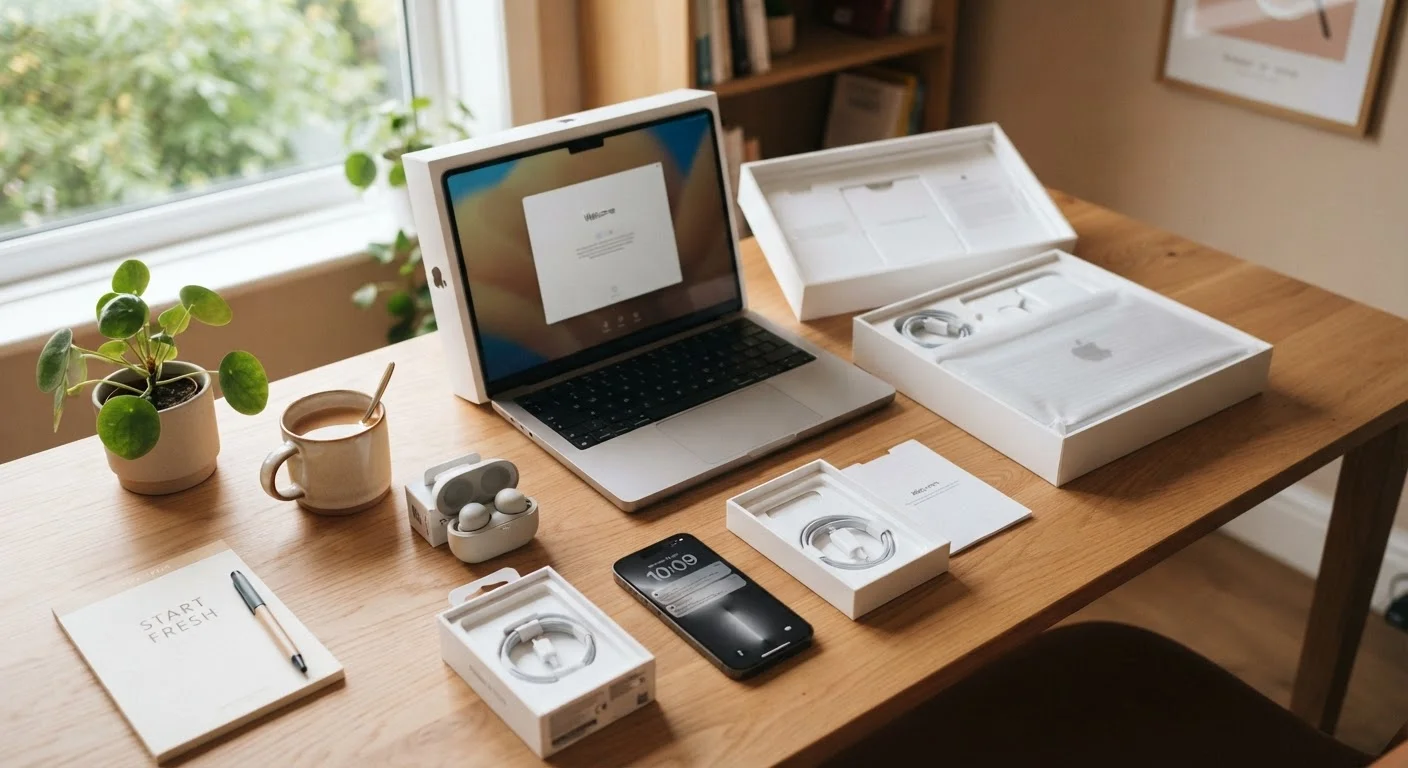
Photo: InDepthReads.com | Streamlining Learning For All editorial
Key Takeaways
- Specs describe a device's capabilities, but real-world performance depends on how those specs fit your actual use.
- Keeping software updated is the single most impactful step you can take to protect device security.
- Most connectivity problems are solved by understanding which standard a device uses and whether your network supports it.
- Caring for batteries, storage, and physical hardware from day one significantly extends a device's lifespan.
- A thoughtful setup process-accounts, permissions, backups-saves considerable hassle later on.
Understanding Specs: What the Numbers Actually Mean
Consumer electronics listings are packed with abbreviations and numbers that can feel overwhelming at first glance. The key is knowing which specs matter for your intended use rather than chasing the highest figures across the board.
RAM
Random Access Memory - the temporary workspace your device uses to run active apps and processes. More RAM generally means smoother multitasking.
Storage (ROM/SSD/eMMC)
The permanent space where your apps, photos, and files are saved, even when the device is powered off. Unlike RAM, storage retains data indefinitely.
Processor (CPU)
The central processing unit - the core chip that executes instructions and determines how fast your device handles tasks.
Operating System (OS)
The foundational software that manages all device functions and runs your apps - for example, iOS, Android, Windows, or macOS.
Two-Factor Authentication (2FA)
A security method that requires a second form of verification (such as a text code or app approval) in addition to your password when logging in.
Lithium-Ion Battery
The rechargeable battery type used in most modern portable electronics. It degrades gradually over time and charge cycles, reducing total capacity.
Processor (CPU): Think of this as the device's engine. Higher clock speeds (measured in GHz) and more cores generally mean faster performance, especially for demanding tasks like video editing or gaming. For everyday web browsing and communication, a mid-range processor is typically sufficient.
Storage: This is where your files, apps, and photos live permanently. A common source of frustration for new owners is buying a device with too little storage. Consider not only what you need today but what you'll accumulate over the next few years.
Display resolution: Expressed as pixel dimensions (e.g., 1920×1080), resolution affects sharpness. Higher resolution looks crisper, particularly on larger screens. For most users, 1080p on a laptop or phone offers a strong balance of clarity and battery efficiency.
For a broader look at evaluating purchases smartly, see consumer literacy fundamentals.
Connectivity Basics: Wi-Fi, Bluetooth, and Beyond
Understanding how your device communicates with the world around it removes a major source of daily frustration.
Wi-Fi standards are denoted by names like Wi-Fi 5 (802.11ac) and Wi-Fi 6 (802.11ax). A newer Wi-Fi standard on your device only delivers its full benefit if your router also supports it-your device and router negotiate the fastest mutually supported speed. If your internet feels slow, the bottleneck is often the router or your internet plan rather than the device itself.
Bluetooth versions matter less for casual users, but Bluetooth 5.0 and later versions offer improved range and more stable connections compared to older versions. Pairing issues are almost always resolved by forgetting the device in settings and re-pairing from scratch.
USB ports and charging standards have multiplied in recent years. USB-C has become the dominant connector on modern laptops and phones, while USB-A remains common for accessories. Charging speeds (measured in watts) vary by cable and charger-using a lower-wattage charger than your device supports is safe but slower, not harmful.
Quick Fix for Most Connectivity Issues
Software Updates and Security
No single habit protects your device-and your personal data-more effectively than keeping software current. Updates do three things: patch security vulnerabilities, fix bugs, and occasionally introduce new features.
Operating system (OS) updates come from the platform manufacturer-Apple for iPhones and Macs, Google for Android, Microsoft for Windows PCs. These are the most critical to install promptly because they address vulnerabilities that bad actors actively exploit.
App updates are delivered through your device's app store. Enabling automatic app updates means you rarely need to think about this manually.
Beware of Fake Update Prompts
Strong, unique passwords and two-factor authentication (2FA) are the second line of defense after updates. Most devices now offer a built-in password manager or prompt you to set up biometric authentication (fingerprint or face unlock) during initial setup-accept those prompts rather than skipping them.
If you're navigating multiple new responsibilities at once, building a first budget is another useful starting point as you manage new technology expenses.
Setting Up and Personalizing Your Device
The setup phase is your best opportunity to establish good habits before old ones form. Most modern devices walk you through an on-screen setup wizard, but a few steps are easy to overlook.
- Enable automatic backup to cloud storage (iCloud, Google Drive, or similar) during initial setup. This ensures your data survives a lost or broken device.
- Review app permissions carefully. When an app requests access to your camera, microphone, or location, consider whether that access is genuinely necessary for the app's function. You can always revisit permissions in the device's settings menu.
- Set up a screen lock using a PIN, password, or biometric method immediately. An unlocked device is an open door to your personal information.
- Organize apps and notifications early. Allowing every installed app to send push notifications leads to alert fatigue. Spend a few minutes disabling notifications for apps that don't genuinely need your immediate attention.
The decisions you make on day one-backup method, account sign-ins, permissions-save significant trouble down the road. When you eventually move on to a new device, a device hand-down checklist helps ensure you've secured your data before passing the old one along.
Everyday Care and Longevity
Electronics are built to last, but daily habits have a measurable impact on how long they perform well.
Battery care: Lithium-ion batteries-used in virtually all portable consumer electronics-degrade gradually over charge cycles. Avoiding extreme temperatures, not leaving devices in direct sunlight, and charging before the battery reaches near-zero are straightforward practices that slow this degradation. Many devices now include battery health monitoring tools in settings.
Physical protection: Cases and screen protectors are among the most cost-effective forms of device insurance for high-use portable devices. Dust and moisture are less visible threats; keeping ports clear and avoiding humid storage environments extends hardware life.
Storage management: A device with nearly full storage often runs noticeably slower. Periodically clearing cached data, removing unused apps, and offloading photos to cloud or external storage keeps performance consistent.
Just as a new car requires an orientation to its systems and ongoing maintenance-something covered thoroughly in our first-time car owner's guide-new electronics reward the same thoughtful approach. Building familiarity early pays dividends throughout the device's life.
When to Contact Manufacturer Support
Frequently Asked Questions
The content on this site is for informational purposes only and is not a substitute for professional advice. Always consult a qualified professional for guidance specific to your situation.