
USB-A, USB-C, and USB 3.0: Sorting Out the Cable Confusion

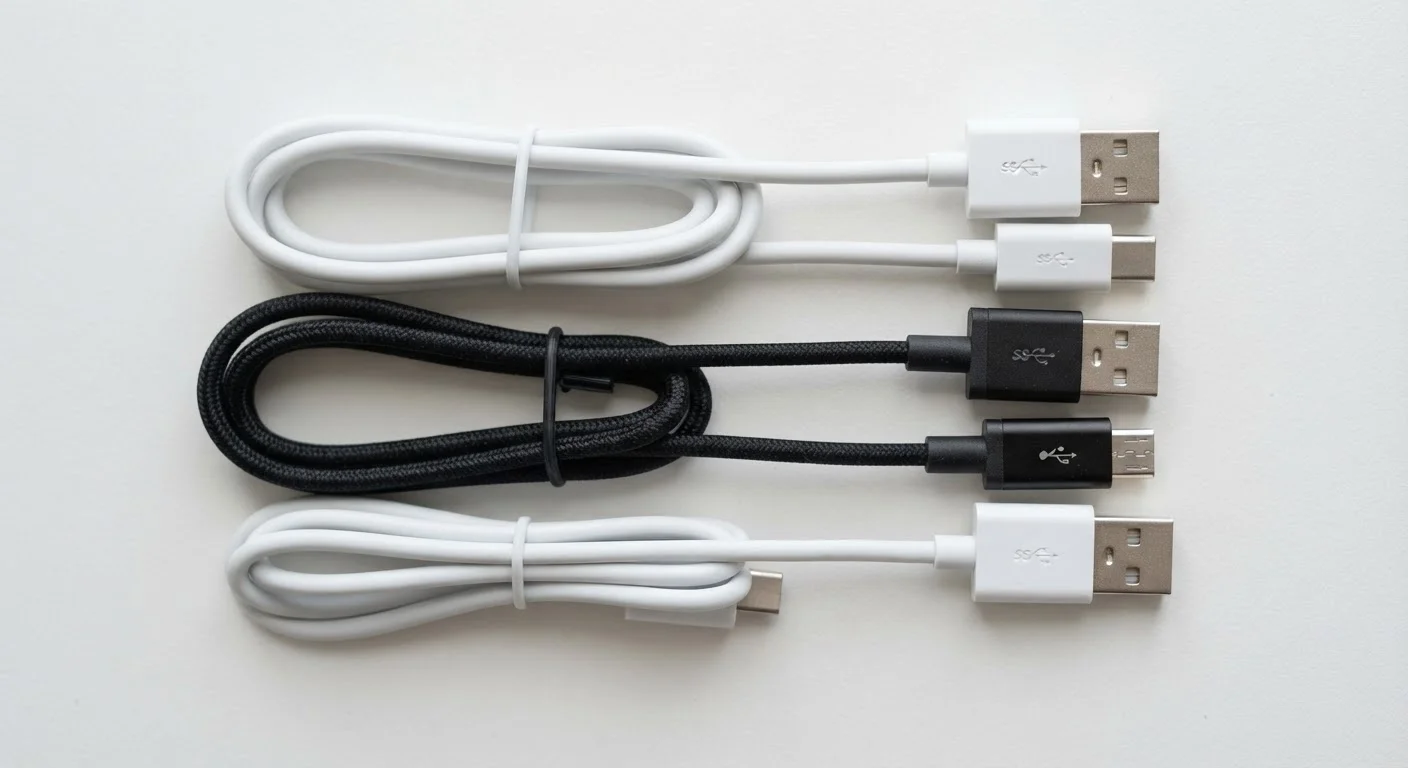
Photo: InDepthReads.com | Streamlining Learning For All editorial
The Two Things USB Labels Tell You
When you see a USB label, it is describing two different things at once: the connector shape (what physically plugs in) and the protocol version (how fast data moves). These are independent of each other, which is the root of most cable confusion.
The letters - A, B, C, Micro, Mini - refer to the connector's physical form. The numbers - 2.0, 3.0, 3.1, 3.2 - describe the underlying standard governing speed and power delivery. A single cable can have a USB-A connector on one end and a USB-C on the other, while still running on USB 2.0 speeds internally. Shape and speed do not automatically go together.
| USB-A max speed (USB 3.0 port) | 5 Gbps (USB Implementers Forum specification) |
| USB-C max speed (USB4 Gen 3) | 40 Gbps (USB Implementers Forum specification) |
| USB 2.0 max speed | 480 Mbps (USB Implementers Forum specification) |
| USB-C reversible orientation | Yes - inserts either way |
| USB 3.0 port identifier | Blue-colored port interior (Industry convention) |
USB-A: The Original Rectangular Plug
USB-A is the flat, rectangular connector that has appeared on computers, chargers, and hubs since the late 1990s. It is the most widely recognized USB shape in the world. One practical drawback: it only fits one way, meaning you often need two attempts to plug it in correctly.
USB-A ports are still standard on most desktop computers, many laptops, and the wall adapters that ship with everyday devices. They most commonly operate at USB 2.0 speeds (up to 480 Mbps), though USB 3.0-capable USB-A ports - identifiable by a blue color-coded interior - deliver up to 5 Gbps. If your flash drive transfers feel slow, check whether you are plugging into a black (USB 2.0) or blue (USB 3.0) port.
USB-A
The flat, rectangular USB connector found on most computers and wall adapters. It is not reversible and has been the dominant USB shape since the technology's introduction.
USB-C
A small, oval, reversible USB connector capable of carrying data, power, and video over a single cable. Performance varies widely depending on the underlying protocol version.
USB 3.0
A USB protocol standard supporting data transfer speeds up to 5 Gbps, roughly ten times faster than USB 2.0. Also retroactively labeled USB 3.2 Gen 1 in current documentation.
Power Delivery (USB PD)
A USB charging standard, available over USB-C, that allows higher wattage charging for laptops and tablets. The cable and both devices must support the standard for full benefit.
Thunderbolt
A high-performance interface developed by Intel that uses the USB-C connector shape. Thunderbolt 4 supports up to 40 Gbps and is backward-compatible with USB-C devices.
USB-C: The Newer Oval Connector
USB-C features a small, oval shape that is reversible - it inserts correctly regardless of orientation. Beyond convenience, USB-C is designed to carry far more capability over a single cable: data transfer, video output, and power delivery can all travel through the same connector simultaneously.
USB-C is now standard on modern Android smartphones, laptops, tablets, and many accessories. Importantly, having a USB-C port does not guarantee any particular speed or power level. A USB-C cable built on USB 2.0 will charge your device but transfer data slowly. A Thunderbolt 4 cable uses the USB-C shape but supports up to 40 Gbps. Always check the cable's rated specification - the shape alone tells you nothing about performance. Just as Bluetooth version numbers reveal real-world performance differences, USB version numbers matter far more than the connector shape.
Cable Quality Matters More Than You Think
USB 3.0 and Beyond: What the Numbers Mean
USB 3.0 was the first major speed leap beyond USB 2.0, offering up to 5 Gbps - more than ten times faster. Subsequent generations pushed further: USB 3.1 added a 10 Gbps mode, and USB 3.2 can reach 20 Gbps using compatible hardware and cables.
The naming has been updated over time, leading to a confusing landscape of synonyms. What was originally called USB 3.0 is now also labeled USB 3.2 Gen 1. USB 3.1 Gen 2 became USB 3.2 Gen 2. Marketing terms like SuperSpeed and SuperSpeed+ refer to specific tiers within this family. When comparing devices, look for the Gbps figure rather than relying on version name alone - that number gives you an unambiguous performance benchmark.
5 Gbps
USB 3.0 data transfer ceiling
Per the USB Implementers Forum, USB 3.0 (USB 3.2 Gen 1) supports theoretical transfer speeds up to 5 gigabits per second.
10×
Speed increase from USB 2.0 to USB 3.0
USB 3.0 offers roughly ten times the maximum theoretical throughput of USB 2.0's 480 Mbps ceiling.
100W
Max power via USB Power Delivery
The USB Power Delivery specification supports up to 100W of charging power over a compatible USB-C cable and port.
The content on this site is for informational purposes only and is not a substitute for professional advice. Always consult a qualified professional for guidance specific to your situation.